Included
Reef Lagoon
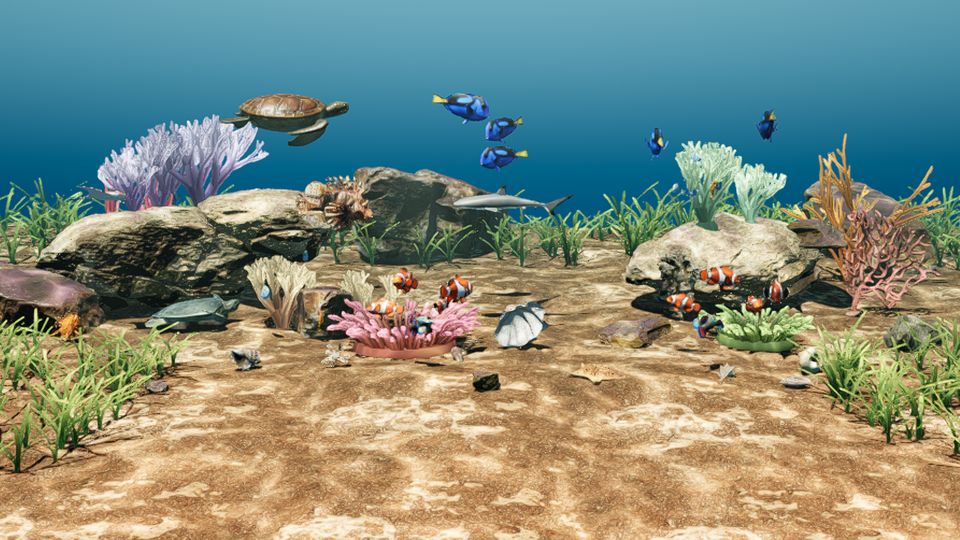
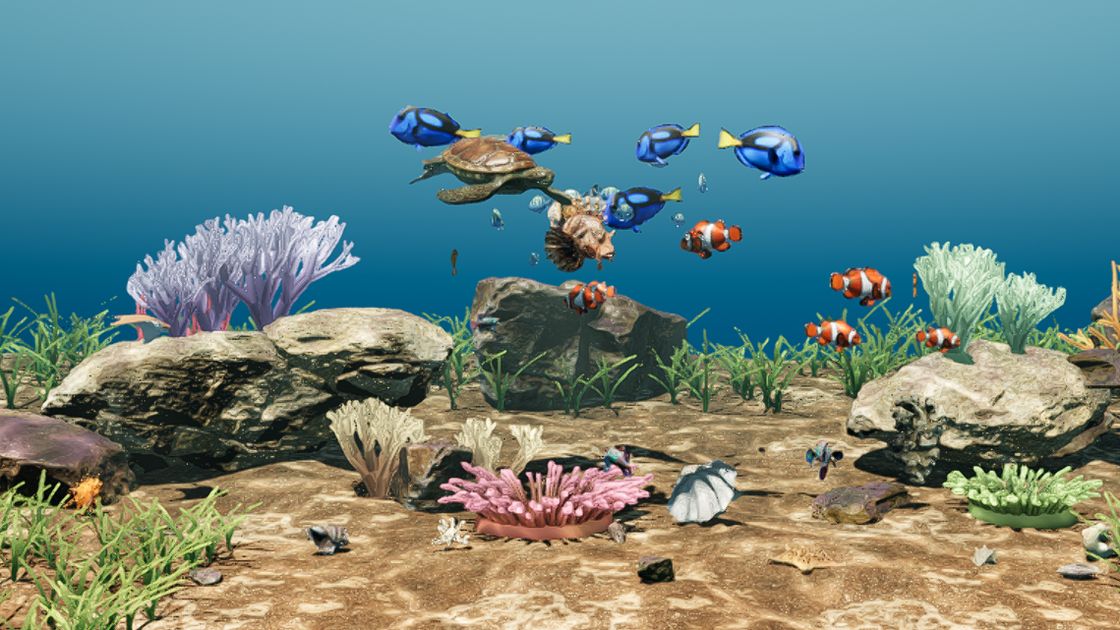
Clownfish, blue tangs, mandarinfish, a lionfish and damselfish over coral and seagrass, with a blacktip reef shark, green and flatback sea turtles, a cownose ray and seahorses.

 Living Desktop
A living 3D aquarium behind your desktop icons. Fish school, forage and rest, rise to food when you click, and the light follows your clock from morning to night.
Your icons, windows and taskbar keep working as usual.
The trailer, 40 seconds, with music: "Carefree" by Kevin MacLeod (incompetech.com), CC BY 4.0.
Living Desktop draws a real-time 3D aquarium on your desktop background. Your icons stay on top and work just as they did, and so do your windows and the taskbar. Nothing loops: every habitat is simulated live, so no two minutes look the same. If you'd rather watch it in a window, switch with one click.
Two come with the app. Three more are add-ons, and you can try each of them before you buy.
Yours as soon as you install the app.
Clownfish, blue tangs, mandarinfish, a lionfish and damselfish over coral and seagrass, with a blacktip reef shark, green and flatback sea turtles, a cownose ray and seahorses.
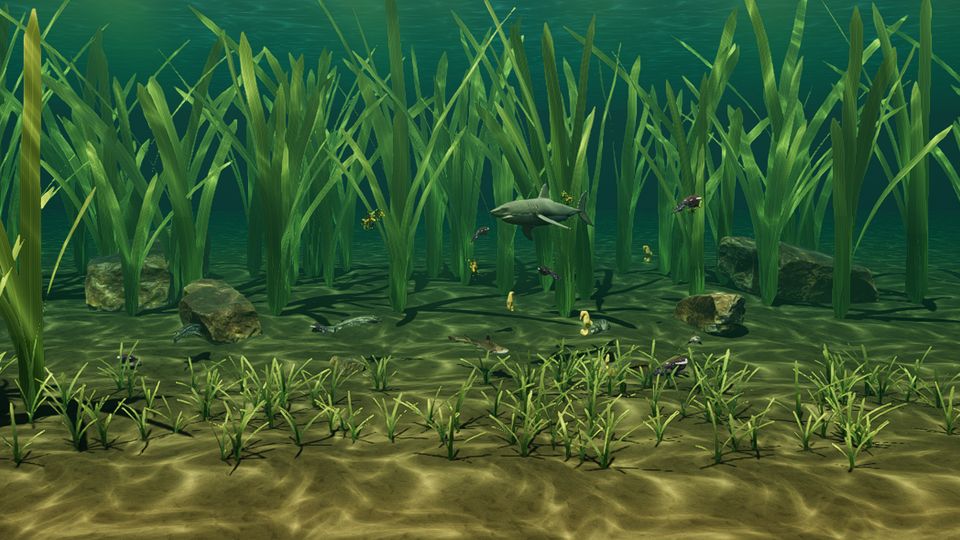
Leafy seadragons, seahorses, bobtail squid and three kinds of shark, from a small pyjama shark to a great white, among swaying kelp.
Bought in the app, through the Microsoft Store.
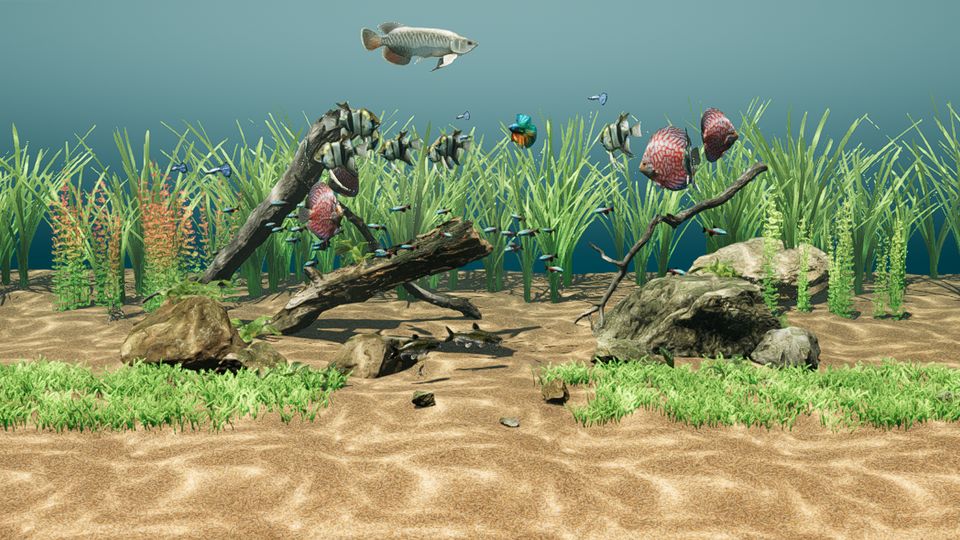
A planted freshwater tank: angelfish, bettas, neon tetras, discus, guppies, an arowana, catfish and giant river prawns among driftwood, moss and stem plants.
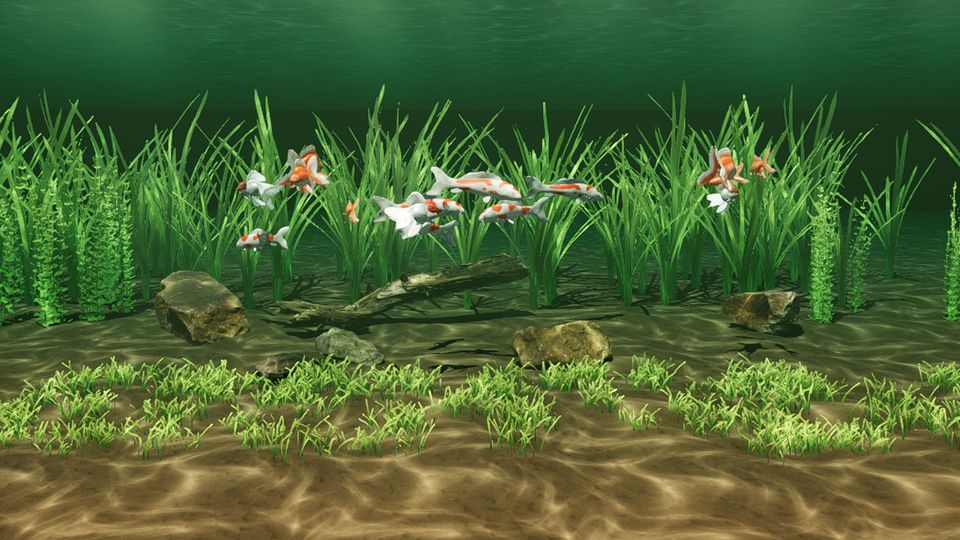
Koi and fancy goldfish (oranda, ryukin and comet) gliding through the tall grasses of a green garden pond.
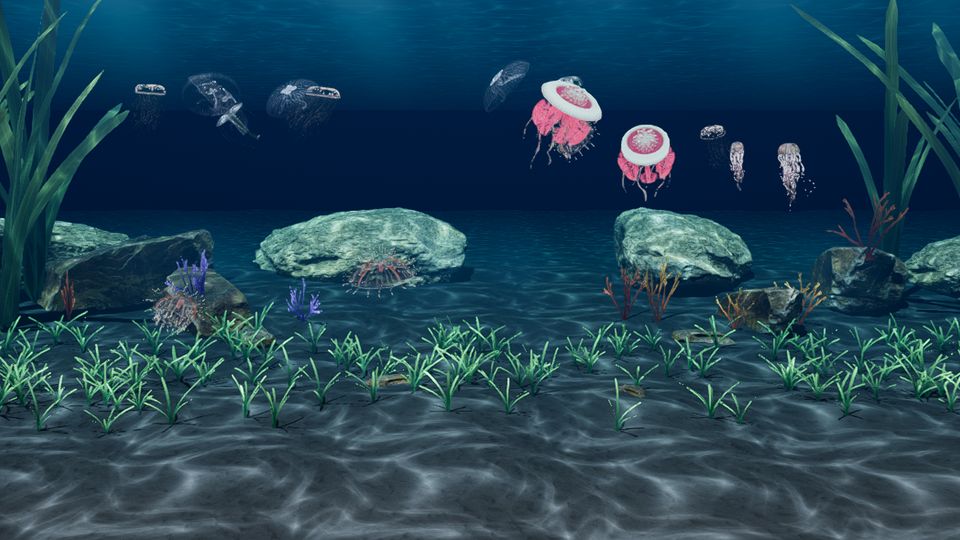
Moon, crown, flower hat, crystal and Liriope jellies and mauve stingers drifting through open blue water, framed by kelp, over a seagrass meadow.
Try before you buy. Choose an add-on habitat in the app and pick Try it free to watch it for 15 minutes first. Only the time it's on screen counts. When you decide to keep it, the purchase is made through the Microsoft Store without leaving the app.
Have a promo code? Choose Redeem a code… from the app's notification-area icon.
The animals act on their own, the light changes through the day, and the app stays out of your way.
Fish school, forage in the sand, rest on the bottom and get out of the way of bigger fish. Sea turtles swim up to the surface to breathe, a curious shark makes a pass at your pointer, and a startled bobtail squid squirts ink and jets away.
Click the bare desktop near the top of the water to drop food, and the fish come up for it. Click lower down to startle them, or move the pointer gently and the curious ones come to look.
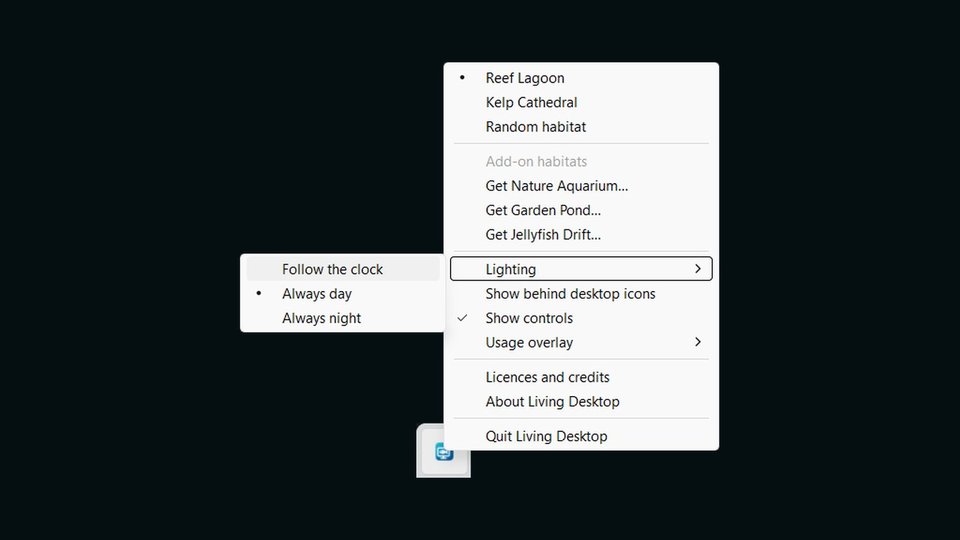
Morning sun through the water, bright daylight, then a dim night-time tank. Neon tetras fade at night, and some jellyfish flash a faint glow when they bump into each other in the dark. You can also keep it at day or at night.
It stops drawing while you can't see it: behind a full-screen game or app, behind maximized windows, or while the screen is off. Auto graphics picks the best look your PC can keep up, and saves power on battery. Want it lighter still? Choose Efficient.
Turn on Start with Windows and your aquarium is there each time you sign in. The Start menu entry brings up the controls, and everything else is in the notification-area icon.
No ads, no analytics and no tracking. The app collects no personal data and makes no network connections of its own. Read the privacy policy.
If a PC can't draw the aquarium, Living Desktop tells you and shows a still picture instead of keeping the processor busy.
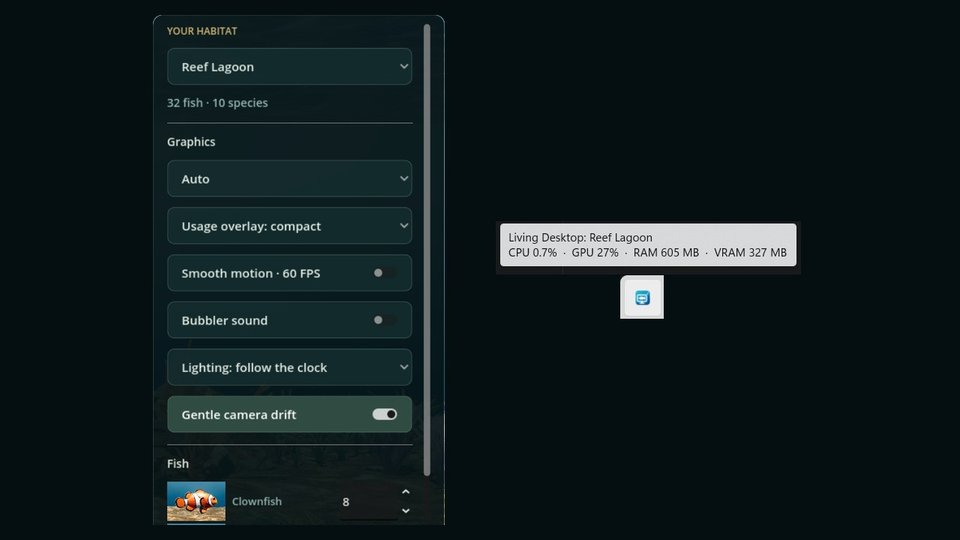
It's built to stay light. It stops drawing while it's covered by a full-screen game or app or by maximized windows, and while the screen is off. With graphics on Auto it picks the best look your PC can keep up and holds back on battery power. For the lightest setting, choose Efficient in the controls.
To see exactly what it uses, turn on the usage overlay from the notification-area icon.
Right-click the notification-area icon, choose Nature Aquarium, Garden Pond or Jellyfish Drift, then pick Try it free. You can watch each add-on for 15 minutes; only the time it's on screen counts, and you can switch away and come back. To keep it, choose Get it in the Microsoft Store and complete the purchase in the window that opens.
Right-click the Living Desktop icon in the notification area and choose Redeem a code…. Microsoft's redeem page opens in your browser: sign in with the Microsoft account you use for the Microsoft Store and enter the code. The habitat unlocks in the app shortly afterwards. The app never sees the code itself.
Yes. Right-click the notification-area icon and clear Show behind desktop icons; the aquarium moves into a normal window. Tick it again to put it back. Living Desktop remembers your choice for next time.
No personal data, and it makes no network connections of its own. Your settings and habitats are kept on your PC. Purchases and promo codes are handled by Microsoft. The privacy policy has the details.
Like any Microsoft Store app: open Start, right-click Living Desktop Habitats - Aquarium and choose Uninstall, or go to Settings > Apps > Installed apps. Windows also removes the settings and habitats the app saved on your PC.
Email us at info@ipathsystem.com.
Living Desktop Habitats - Aquarium, for Windows 10 and Windows 11.